Windows 11 Efficiency Mode Keeps Turning On: ChatGPT & Claude
By Lokman Efe (Lokman Baturay Efe)
The Windows 11 green leaf kept returning for ChatGPT and Claude. Here's the Process Lasso rule that stuck for me, and what I couldn't verify for WhatsApp or Codex.
Windows 11 Task Manager kept showing the green leaf beside my ChatGPT, Claude, and WhatsApp processes. Turning Efficiency Mode off manually worked for the current process, but the leaf could return after I closed and reopened an app.
I wanted an app-specific setting that would stick. Process Lasso's Efficiency Mode → Always → Off rule kept the leaf from returning for ChatGPT and Claude when I reopened them. I didn't confirm the result after a full Windows reboot or measure whether either app got faster. WhatsApp needed a narrower rule, and I didn't test Codex separately.
Quick answer: keep Efficiency Mode off for ChatGPT and Claude
- Open ChatGPT or Claude, then find its process in Process Lasso. In my case, the process names were
ChatGPT.exeandClaude.exe. - Right-click the process and select Efficiency Mode → Always → Off. Choose Always, not Current, so the rule applies to future matching processes too.
- Close and reopen the app. Check the small
ein Process Lasso's Rules column and see whether the green leaf returns in Windows Task Manager.
That is the result I reproduced for those two apps. Process Lasso documents the persistent rule. The same executable-name rule is not a verified WhatsApp or Codex fix; I explain the limits below.
I tried the Windows registry first
I first set PowerThrottlingOff=1 in Registry Editor.
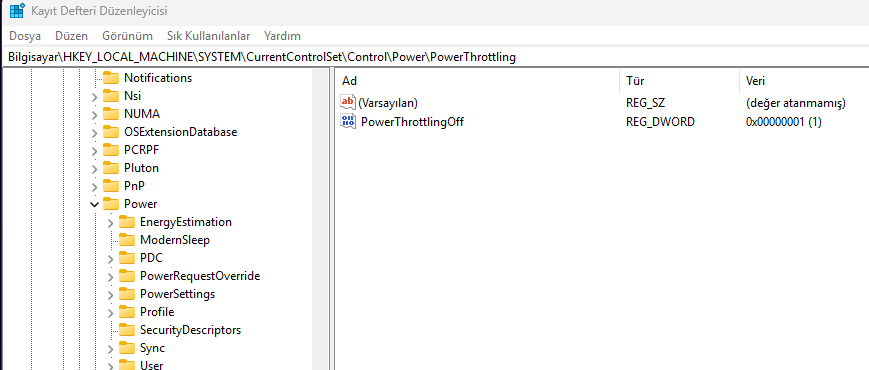
The first registry value I set.
Checking it from the terminal was more confusing than setting it. One direct query couldn't find the key, a recursive query did, and trying to write it again from a non-admin PowerShell window returned "Access denied." I confirmed the value was there and reopened the apps. The leaves still came back.
I then added DisableUserPresenceQos=1 and checked both values again.
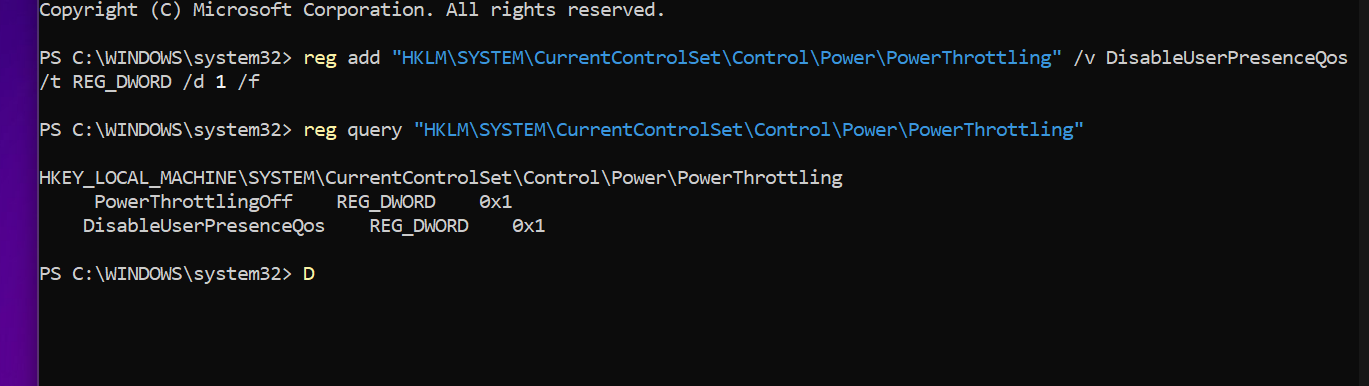
Both values were present after the second change.
Reopening the apps still didn't give me the result I wanted. I don't have a clean before-and-after test from a full Windows reboot, so I can't claim these registry changes never work. Windows can assign quality-of-service levels to processes and individual threads, which also made a global setting a poor substitute for an app-specific rule. Microsoft's QoS documentation explains those controls.
Installing Process Lasso
After more research, I installed Process Lasso. In its startup options I selected "Start core engine as a service at system boot". The GUI was initially set to start for all users. Later, the installer reported an error about starting that GUI with elevated rights.
I left the management scope at "Manage ALL processes Process Lasso has access to" and used C:\ProgramData\ProcessLasso for the configuration.
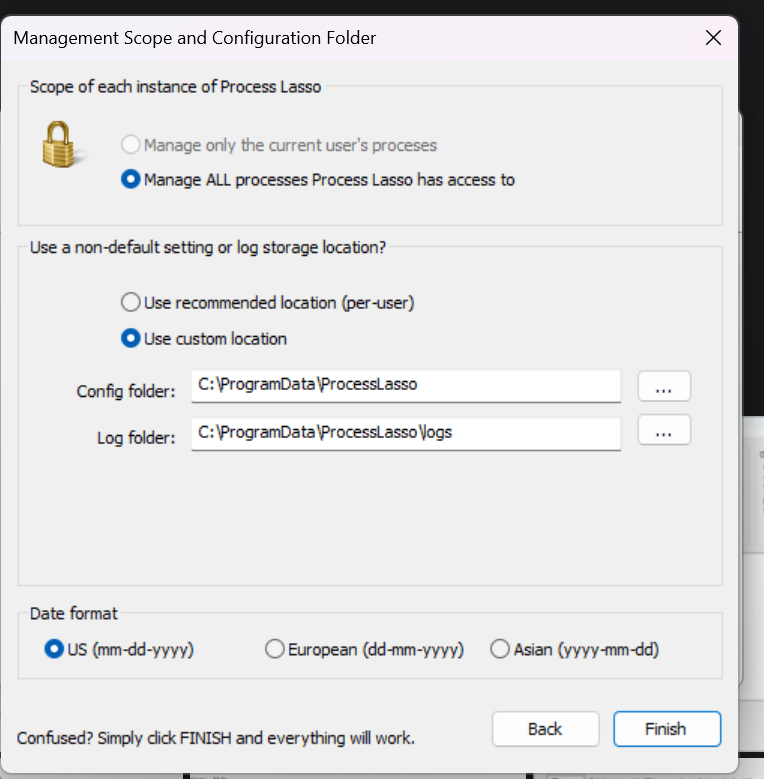
The management scope and configuration folder from my install.
The core engine, called the Governor, applies rules in the background. The Process Lasso window is where I set and inspect them; the GUI doesn't need to stay open. The Governor was running, so the GUI startup error didn't stop me from setting rules.
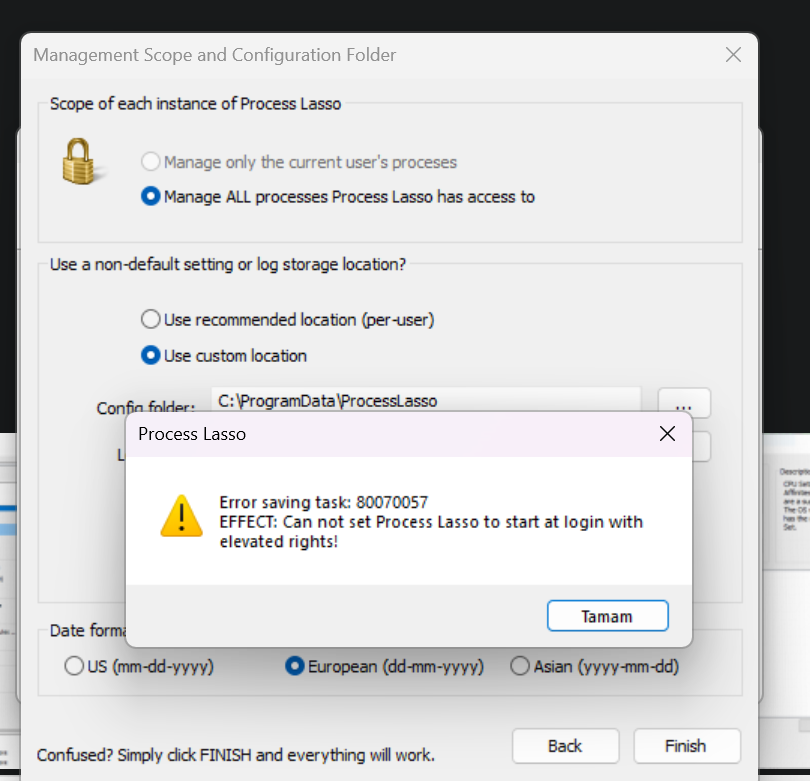
The GUI startup error I saw during installation.
Process Lasso: the Efficiency Mode Always Off rule I set
With ChatGPT open, I right-clicked one ChatGPT.exe row in Process Lasso and chose:
Efficiency Mode → Always → OFF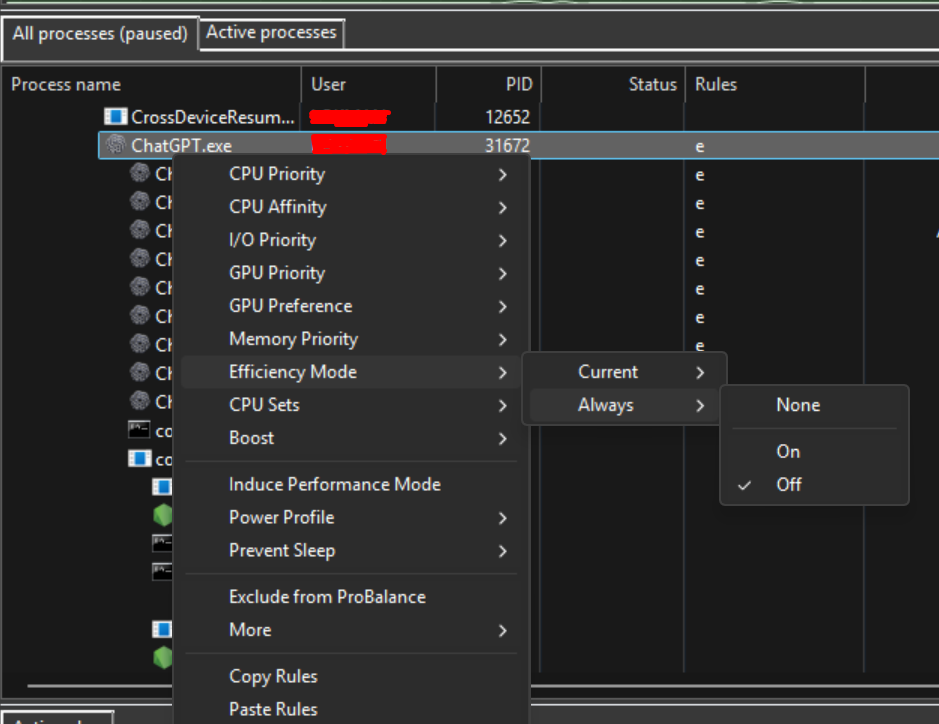
The checked Off option is under Always. The e beside ChatGPT is in the Rules column.
I repeated that for Claude.exe. I didn't have to select every instance or use a process ID. Always creates a rule for future processes matching that name; changing the current instance alone would have sent me back to the same problem. Process Lasso marks an Always OFF rule with a small e in its Rules column. Bitsum documents the menu and indicator.
Several Chrome processes were in Efficiency Mode too. I left them alone because I wasn't trying to change how every browser subprocess runs.
WhatsApp wasn't where I expected it in the process list. I put an Always OFF rule on msedgewebview2.exe too, though that name could match other apps. Then I closed and reopened the apps and reported that the leaves had gone. The ChatGPT and Claude result was useful. The WebView2 rule needed another look.
I didn't benchmark whether the apps got faster, and I don't have a recorded reboot test with the GUI closed. To check startup behavior, I'd look for a running, automatic Governor service in services.msc, restart Windows, then open the apps without launching the Process Lasso window.
Bitsum lists Efficiency Mode among the features in its free edition. I didn't need to buy Pro for this setup.
Windows 11 WhatsApp Efficiency Mode: why my rule was too broad
If your main symptom is that WhatsApp Desktop feels slow on Windows 11, start with my WhatsApp lag troubleshooting checklist. It separates connection delays from a sluggish app before looking at Efficiency Mode.
msedgewebview2.exe belongs to Microsoft's WebView2 runtime. Teams, Outlook, Widgets, and other apps can use it too. In Task Manager's Details tab, their WebView2 processes appear under the same executable name. A rule matching that name could therefore change the behavior of apps I never meant to touch. Microsoft explains the shared process name here.
Process Lasso can match a process by more than its name, including its path or command line. A WhatsApp-specific rule would need me to identify the right processes first, then test a narrower match. Bitsum documents those matching options. I haven't verified that rule, and I don't have a record of removing the broad WebView2 rule afterward. I wouldn't copy that setting as a WhatsApp fix.
If WhatsApp is the app showing the leaf on your PC, a safer next test is to expand WhatsApp in Task Manager's Processes tab, identify which child process has Efficiency Mode, then inspect that process's details in Process Lasso. Look for a path or command-line match that is specific to WhatsApp before making an Always Off rule. If you cannot distinguish it from other apps' WebView2 processes, don't apply a rule to every msedgewebview2.exe. I have not tested a WhatsApp-specific match, so this is a way to investigate the problem, not a verified fix.
Codex on Windows: does the Efficiency Mode rule apply?
OpenAI describes Codex as part of the ChatGPT desktop app on Windows. My screenshot and successful rule were for a process named ChatGPT.exe; I did not run a separate Codex test, inspect every Codex subprocess, or establish that Efficiency Mode causes Codex lag.
If you see the green leaf while using Codex, first identify which process has it in your version of the app. A rule for ChatGPT.exe may affect that matching process, but it does not prove every Codex process is covered or that a performance problem will disappear.
I also considered setting CPU priority to Normal, excluding apps from ProBalance, and preferring P-cores. I didn't verify any of those changes. The part I can recommend from my own test is narrower: targeted Always OFF rules kept Efficiency Mode from reappearing when I reopened ChatGPT and Claude.
Comments
Comments are powered by Giscus. Join the discussion on GitHub!